
Adding Bokun to your dashboard and importing tours
Everything you need to connect Bokun to datakyte, configure your API key correctly and get your inventory live after our latest platform upgrade.
Important
This update only applies to operators using Bokun.
As part of our major platform upgrade we rebuilt our reservation platform integrations. To ensure your inventory and KLNKs benefit from the latest technology, a one time re-import is required.
The good news is that this will not need to be done again. Once your inventory has been synchronised with the new system, our upgraded integration will keep your tours up to date automatically. Changes made inside Bokun sync with datakyte dynamically, removing the need for future manual re-imports.
Bokun users, API key requirements
Before importing your inventory, please ensure your Bokun API key is configured as follows.
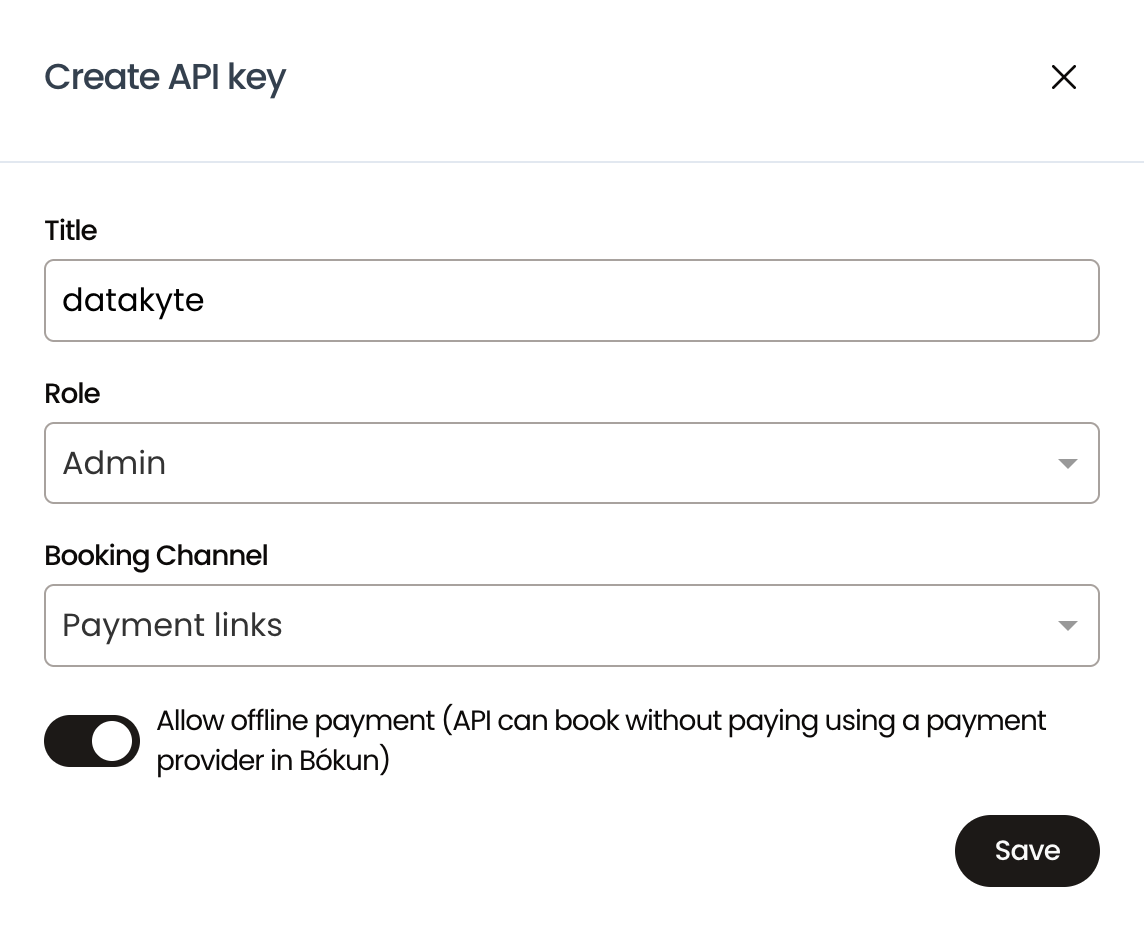
What you need to do
If you use Bokun, please follow these simple steps.
- 1
Sign in
Log in to your datakyte dashboard.
- 2
Connect your reservation platform
Go to Integrations and connect your Bokun account if it is not already connected.
- 3
Import your inventory
Select Import Inventory and allow datakyte to synchronise your latest tours and activities.
- 4
Generate new KLNKs
Once your inventory has been imported, generate new KLNKs for the experiences you want to promote.
As part of this one time upgrade, all previous KLNKs have been removed so that every new KLNK is built on our latest platform architecture and includes the new enhancements.